What do I need to make a video collage?
Your clips and photos, and a browser. Nothing to install, no account, and the files stay on your device.
Guide · with a free collage maker
A practical walkthrough: the right shape for where it will be posted, a layout that suits your clips, timing, music and the export settings that keep it sharp.
To make a video collage, decide where it will be watched (that sets the shape), pick a layout with one cell per clip or photo, trim each clip to its best seconds, add music if you want it, and export one MP4. The editor at the top of this page does each of those steps in your browser.
The rest of this guide covers the decisions that make a collage look deliberate rather than crowded. For phone-specific routes, see the iPhone and Android guides.
Story 9:16 for Stories, Reels, TikTok and Shorts; Post 4:5 or Tall post 3:4 for feeds; Landscape 16:9 for YouTube and TVs.
Select Add photos and videos and pick all your clips and photos together; a template that suits the count is chosen.
Browse the Layout tab. Drag cells onto each other to swap, and tap a cell then drag inside it to reframe.
Trim clips in the Media tab, choose Loop or Freeze and the length in Timing, and add a song in Music.
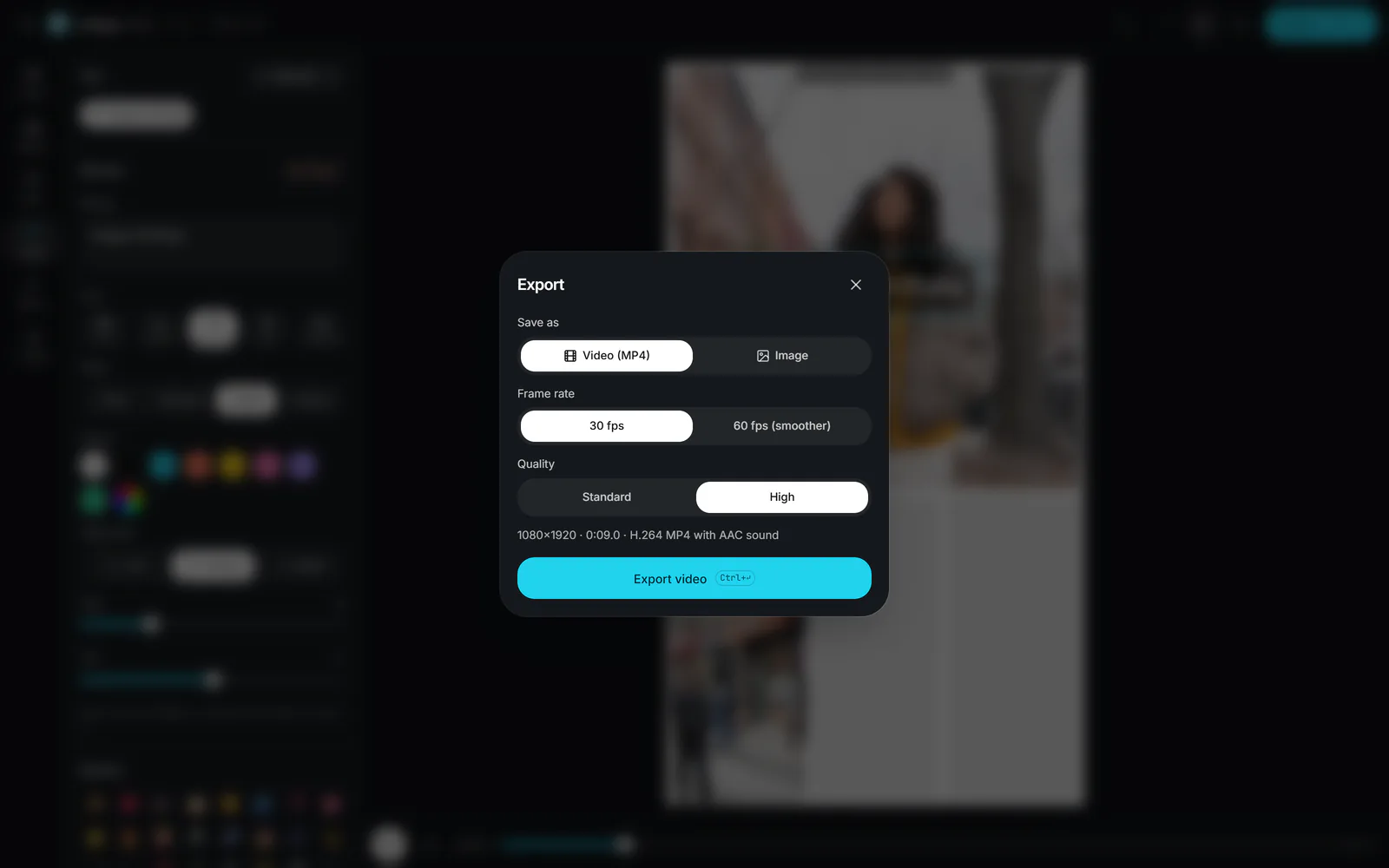
Select Export, choose 30 or 60 fps and High quality, then Export video and download or share the MP4.
The number of items decides most of it. Two clips want a split screen; one main clip and a reaction want picture in picture; four to nine want a grid or a mosaic. Beyond that:
Collages fail when clips of very different lengths jerk to a stop. Trim long clips to the moment that matters, then choose whether short ones Loop (good for repetitive motion such as waves or a spinning record) or Freeze on their last frame (good for a punchline or a final pose). Set an exact length when the platform rewards it, such as a 15-second story.
For a story-like build, Show one by one in the Timing tab reveals the cells in order.
Several clips talking at once is the most common collage mistake. Pick one clip to be heard and switch the rest off, or put a song underneath and set Clip sound to Lower. If you plan to add a trending sound inside Instagram or TikTok, export with the clip sound off.
 (enlarge image)
Choose the frame rate and High quality, then Export video.
Your clips and photos, and a browser. Nothing to install, no account, and the files stay on your device.
Two to six is the sweet spot on a phone screen. Up to nine works with short, simple clips.
Yes. Mixing them is the point: photos hold still with a slow zoom while the clips play around them.
Fifteen to thirty seconds for stories and reels. Longer collages (up to 3 minutes here) suit gifts, parties and YouTube.
No. Trim, rotate, flip, zoom and reframe each clip inside its cell in the Media tab.