Free · photos and videos together · nothing uploaded

Split screen video maker

Put two videos side by side for landscape, or stack them for a vertical story. Pick your clips and the split is ready to play, trim and export.

Make a split screen video

1080×1920 · Stories, Reels, TikTok, Shorts

Or start from a template

35 layouts

Free · no watermark · nothing is uploaded

To make a split screen video, select Add photos and videos above and pick two clips. Two items get a two-cell layout automatically: stacked top and bottom in the Story format, side by side in Landscape. Play it to check the timing, then select Export for an MP4.

The split is a template, so you can change it at any moment: three stacked rows, three columns, or a split with a picture-in-picture inset all sit under Split screen in the Layout tab. If you want one clip to cover the frame with the other floating on top, see picture in picture instead.

How to put two videos side by side

  1. Choose a format

    Story 9:16 stacks the two clips; Landscape 16:9 or Square puts them side by side. You can change it later in the Layout tab.

  2. Add both clips

    Select Add photos and videos and pick both at once. They fill the cells in the order you picked them; drag one onto the other to swap.

  3. Line them up in time

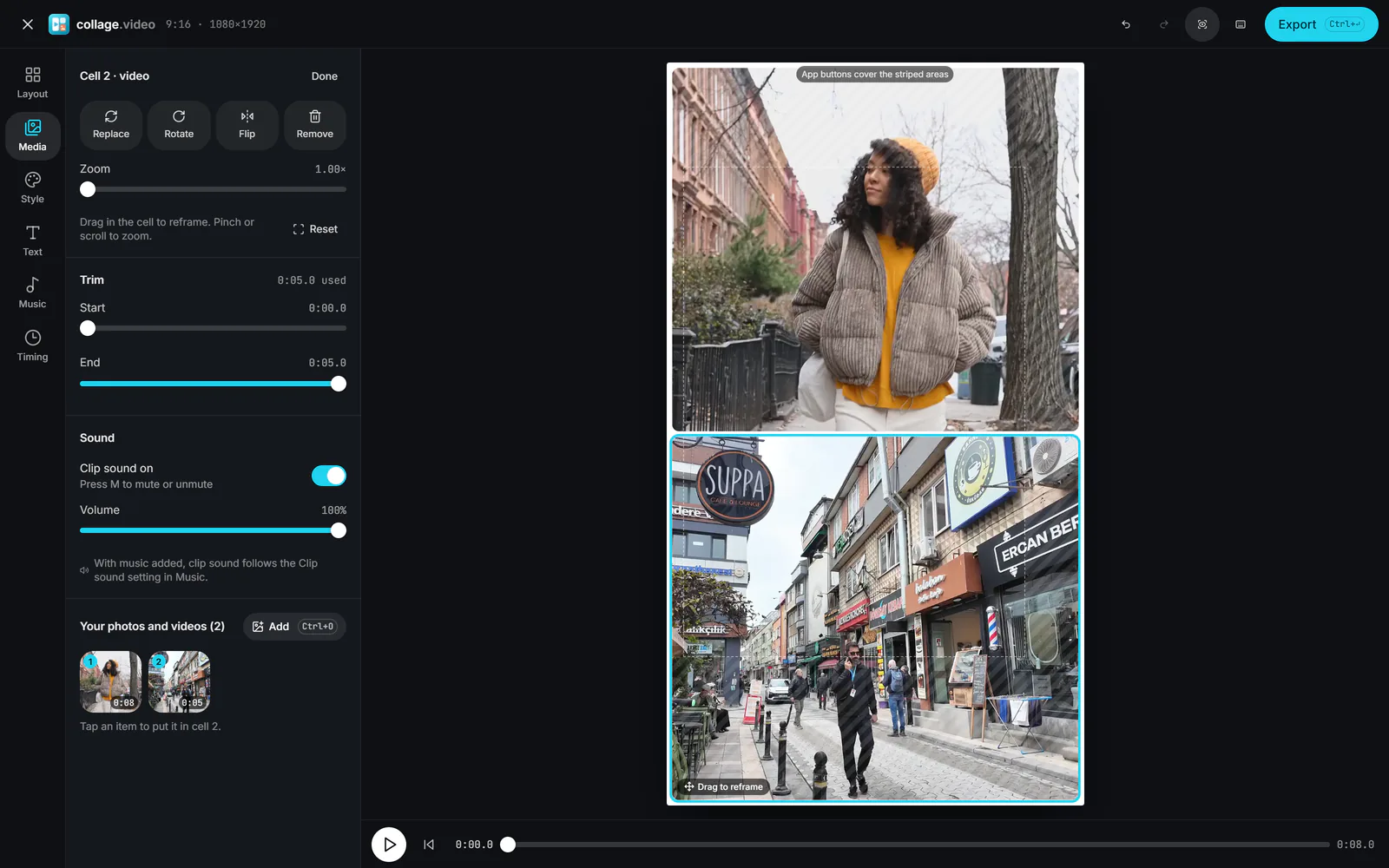
    Tap a clip, then use Trim (Start and End) so both start on the same moment, a clap, a beat or the first word.

    Two clips stacked in a 9:16 split screen, with the lower clip selected and its Trim Start and End sliders and Sound settings in the Media tab (enlarge image)

    Tap a clip, then use Trim to line the two up.

  4. Choose whose sound plays

    Tap the clip you don’t want to hear and switch its sound off (or press M). Keep both on for a duet.

  5. Export

    Select Export, then Export video. The result is one MP4 with both clips playing at once.

Side by side or top and bottom?

Match the split to where the video will be watched. A phone held upright is tall and narrow, so two clips side by side in a 9:16 frame each become thin slivers. Stacking them, one above the other, gives each clip a nearly square window. For YouTube, a laptop or a TV, side by side in 16:9 is the natural choice.

  • Story 9:16, Two stacked: reaction videos, duets, before and after for TikTok and Reels.
  • Landscape 16:9, Side by side: tutorials with a face cam, game footage next to a reaction, sports comparisons.
  • Square 1:1, Side by side: feed posts where each half shows a full person.

Getting both clips in sync

Two phones never start recording at exactly the same moment. Trim the start of the clip that began earlier until a clear shared event, such as a clap, a door closing or the first note, lines up in both cells. Press Space to play, comma and full stop to step a frame at a time, and adjust the Start slider until they match.

If one clip is shorter, the Timing tab decides what happens when it runs out: Loop plays it again, Freeze holds its last frame until the longer one ends.

Beyond two

Three stacked rows suit a story with three takes; three columns suit landscape. For four or more clips, a video grid keeps every cell the same size. Gaps, a coloured border and rounded corners are in the Style tab; set the gap to zero for a seamless split.

Split screen video FAQ

How do I put two videos side by side for free?

Pick the Landscape or Square format above, select Add photos and videos and choose both clips. They appear side by side straight away. Select Export, then Export video; there is no charge and no watermark.

Can I hear both videos at once?

Yes, both play their sound by default. Tap a clip and lower its Volume, or switch its sound off, to make the other one clearer. Adding music under Music lets you lower or mute both clips underneath it.

What if the two clips are different lengths?

The split screen lasts as long as the longer clip (after trimming). The shorter one loops by default; choose Freeze in the Timing tab to hold its last frame instead, or use Set length for an exact duration.

Can I make a three-way split screen?

Yes. In the Layout tab, open Split screen and choose Three stacked or Three columns, then add a third clip.

Will a split screen video work on TikTok and Instagram?

Yes. Use the Story 9:16 format with Two stacked, which exports at 1080×1920. Turn on Safe zones to see where each app’s buttons will sit.

Is split screen the same as a duet?

A TikTok duet places your recording next to someone else’s TikTok inside the app. Here you can put any two of your own clips side by side, from any camera, before you post.